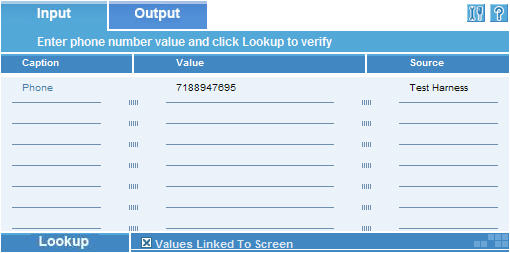
This plug-in provides name and address data associated to any telephone number, including residential, business, and government numbers in the U.S. and Puerto Rico (cellular phone numbers are not included). This data is updated nightly making them the most accurate and up to date resource of their kind. As it can be seen from the picture below, there are two tabs in this plug-in (input & output).
Input tab: This tab is used to take in values either from an external application or by manual entry. To get the name and address associated with the phone number the user has to click the Lookup button which will lookup the data and show it in the Output tab. Output tab:
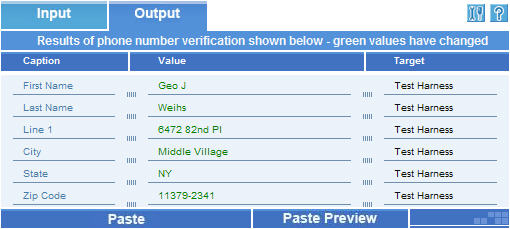
This tab is used to show the result of the phone lookup. There are two options available with the data shown: Configuring the plug-in:
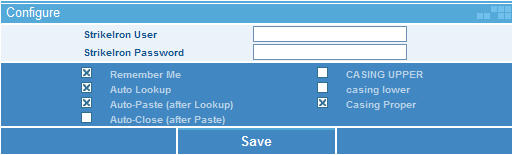
There are several options that can be configured in this section. In order for this application to work the user has to enter the “StrikeIron User & Password” so that the plug-in can communicate with the server. Other options are:
The Auto options help get a more automated response from the system. For example if Auto lookup is selected, the system will look up the value right after it is called without any user interaction. The highest level of automation can be achieved if all 3 Auto options are selected, this way there will be no need for user interaction after the plug-in is called. It will harvest the values from the application, lookup and correct the data , paste the values back to the application and finally close the plug-in. In order for these values to be saved the user has to click the Save button. |