Purpose of this plug-in is to inspect every element of an address to ensure its validity and, using sophisticated matching and data standardization technology, to update incorrect addresses according to postal requirements.
As it can be seen from the picture below, there are two tabs in this plug-in (input & output).
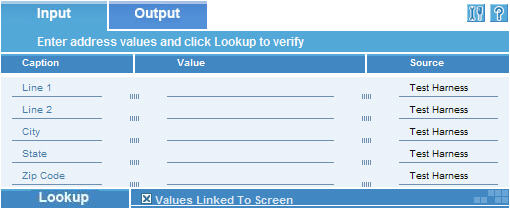
Input tab:
This tab is used to take in values either from an external application or by manual entry.
To verify a different address, other than the address in the linked screen, uncheck the “Values Linked to Screen” checkbox and enter the data manually. Recheck the checkbox to return to read-only mode and refresh data from the application's screen.
Each of the rows in the caption column can be used to highlight where the value came form. In order to do this the user needs to click the name of the value. For example if the ZipPostalCode is clicked it will highlight the place in the application where the Zip code was entered.
The Source column shows where the value came from. It will either write the name of the application or say manual if the value was typed in directly to the plug-in.
To validate the address the user has to click the Lookup button which will lookup the address and show it in the Output tab.
Output tab:
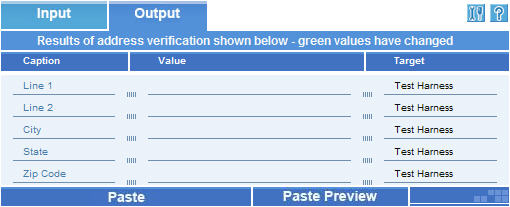
This tab is used to show the result of the address lookup. The values that have changed are marked with green. There are two options available with the data shown:
One is to use the paste button to paste the values back to the application. This option will fill the new corrected values back to the application.
The other is paste preview which will allow the inspection of the acquired data. The target column shows where the data will be pasted (ie the name of the application).
From this screen the user can go back to the Input tab and correct the values either manually or get new values from the application.
Configuring the plug-in:
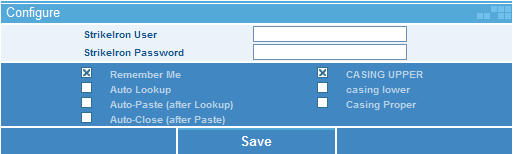
There are several options that can be configured in this section. In order for this application to work the user has to enter the “StrikeIron User & Password” so that the plug-in can communicate with the server. Other options are:
- Remember me – saves the password so that it doesn't have to be entered every time
- Auto Lookup – clicks the lookup button so that it does now require user interaction
- Auto Paste – pastes the value back to the application without user interaction
- Auto Close – closes the plug-in after the value is pasted back to the application
- Casing – these 3 options determine whether the values will be left in the casing that they were in the application or they will be switched to upper or lower after clicking the lookup button
The Auto options help get a more automated response from the system. For example if Auto lookup is selected, the system will look up the value right after it is called without any user interaction. The highest level of automation can be achieved if all 3 Auto options are selected, this way there will be no need for user interaction after the plug-in is called. It will harvest the values from the application, lookup and correct the address, paste the values back to the application and finally close the plug-in.
In order for these values to be saved the user has to click the Save button. |
